The TWKM Sign Catalog has several filters which may be useful in reducing the number of glyphs to scan. In particular, under the Graph filters (left menu), the Iconography sub-filter allows selection from an extensive list of keywords.
Each TWKM code has been tagged with a one or more (usually very many) keywords, e.g., “centipede”, “fish”, “reptile”; “bone”, “knotted band”, “flint”; “male”, “female”; “sun”, “river”, etc. All the codes which have been tagged with such a keyword or keywords can be found by filtering on these keywords. The keywords can be “or-ed” or “and-ed”, i.e., you can look for the codes having any of the specified keywords or all of the specified keywords.
There are a number of different ways to find the keywords you can use:
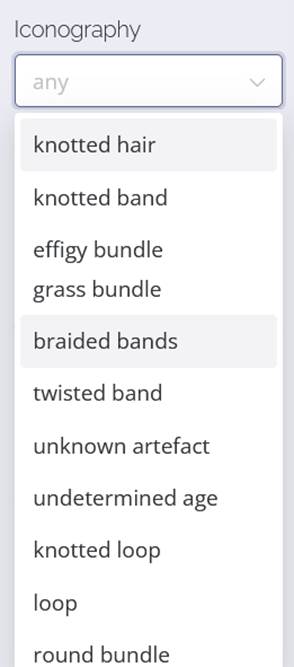
1. Scrolling through the dropdown list offered in the Iconography box. This is difficult because there are so many keywords, and they’re not in alphabetical order.
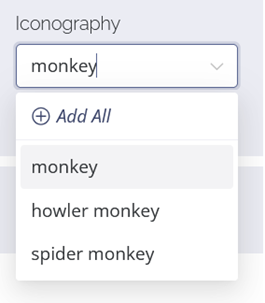
2. Typing in a keyword you have in mind into the Iconography box. The system presents you with all the keywords related to what you’ve typed in. This massively reduces the dropdown list offered, and you can select the keyword you want.
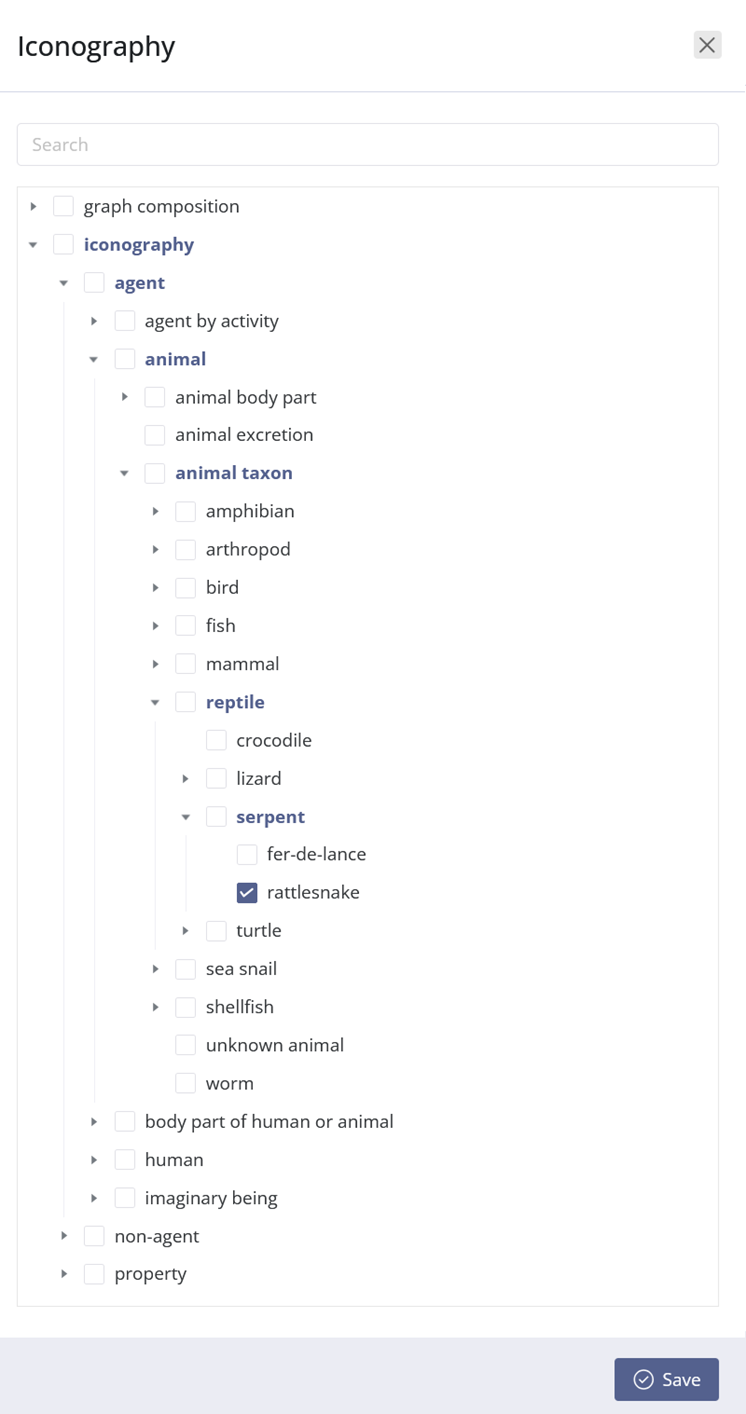
3. Clicking the "Expert" icon to the right of the "Or" button under Iconography. This brings up a thesaurus, which is a data structure (or just diagram) in which the keywords have been arranged in a hierarchy, i.e., a “tree structure”. This means that general terms have (below them) slightly more specific terms, and these slightly more specific terms have even more specific terms, all the way down to very specific terms, to a depth of about 6 or 7. For example, the top of the tree starts with "graph composition" and "iconography". If you expand "iconography", you can get, successively, “iconography” > “agent” > “animal” > “animal taxon” > “serpent” > “rattlesnake”. If you select the checkbox for "rattlesnake" and use the Save button at the far bottom right, you’ll get only one TWKM code. However, if instead you select the more general "serpent" category (and again Save), then you’ll get just over 20 results which may well contain the glyph you had in mind. If you select “animal”, you’ll get an even larger list of all the codes tagged with the keyword “animal”.
Either “2” (typing a possible keyword) or “3” (clicking around to explore the thesaurus) are two of the ways to gradually familiarize yourself with the keywords which TWKM has used to tag the codes. Increasing familiarity with these keywords will mean that you’ll be more easily find the codes you’re interested in.
When displaying any particular code, the keywords used to tag it are displayed in the Iconography box. This is another way to familiarize yourself with the keywords which TWKM have used to tag the codes.
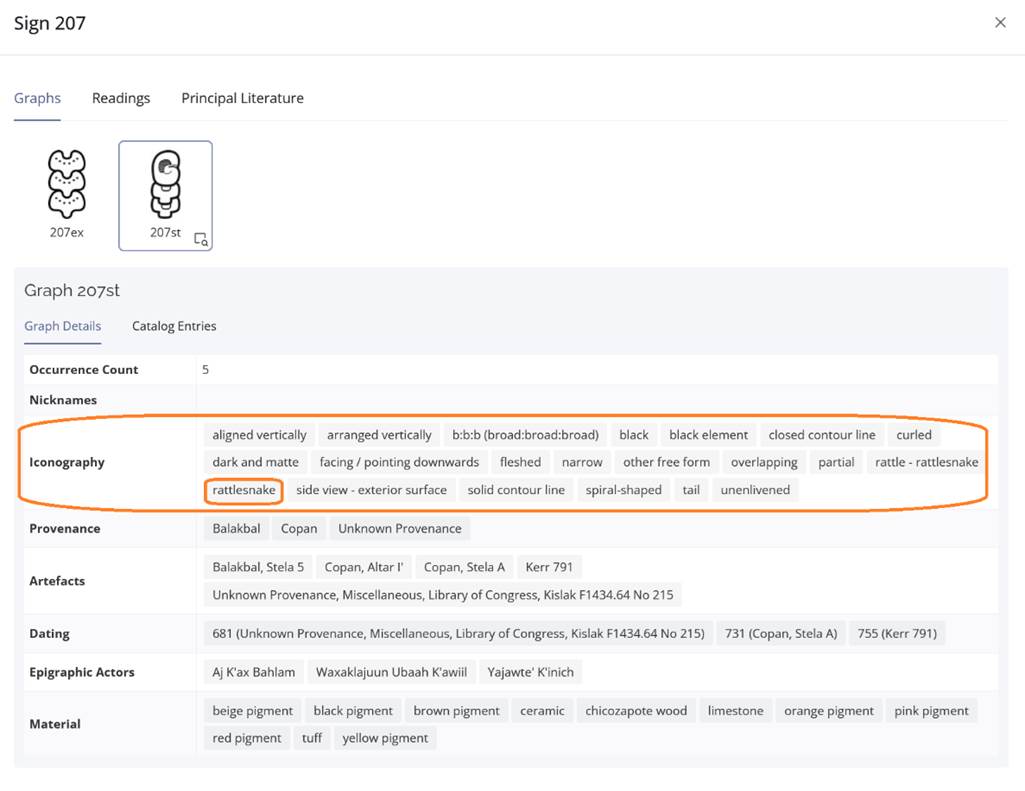
The “variants” of a single 4-digit code – as given by the 2-letter suffix – can differ considerably from one another, visually. Therefore, it stands to reason that the list of keywords associated with each variant may vary somewhat from variant to variant, sometimes dramatically so.